Give Each Wi-Fi Band One Job and Move the Router Out of the Closet
Slow gadgets live on narrow 2.4 GHz, calls and streams stay on 5 GHz, and 6 GHz is only for close, compatible devices.
 neoteo.com · Best Network Setup for Home by Room and Need | NeoTeo
The fastest fix in a small home is not a newer router. It is giving each Wi-Fi band one job, and moving the box to a better shelf.
Think of the bands as three roads. The 2.4 GHz road reaches far rooms but moves slowly, the 5 GHz road is quicker for nearby use, and the 6 GHz road is newest and only for close devices. Width, measured in MHz, is how wide a lane you take: a wider lane can carry more at once but turns fragile when the signal is weak.
Keep faraway, low-speed gear on the long slow road, at its narrowest 20 MHz width. That means bulbs, sensors, and similar light devices, while laptops and high-resolution video stay elsewhere.
Save 5 GHz for nearby computers, video meetings, and streaming. Use the wider 80 MHz lane when surrounding signals are relatively clear, and step down to 40 MHz when neighbors crowd the air.
Save 6 GHz for newer supported phones and laptops that stay close to the router, at 80 or 160 MHz. Reserve the very widest Wi-Fi 7 option for a single close device where local rules permit, since using it everywhere wastes capacity and grows unreliable farther away.
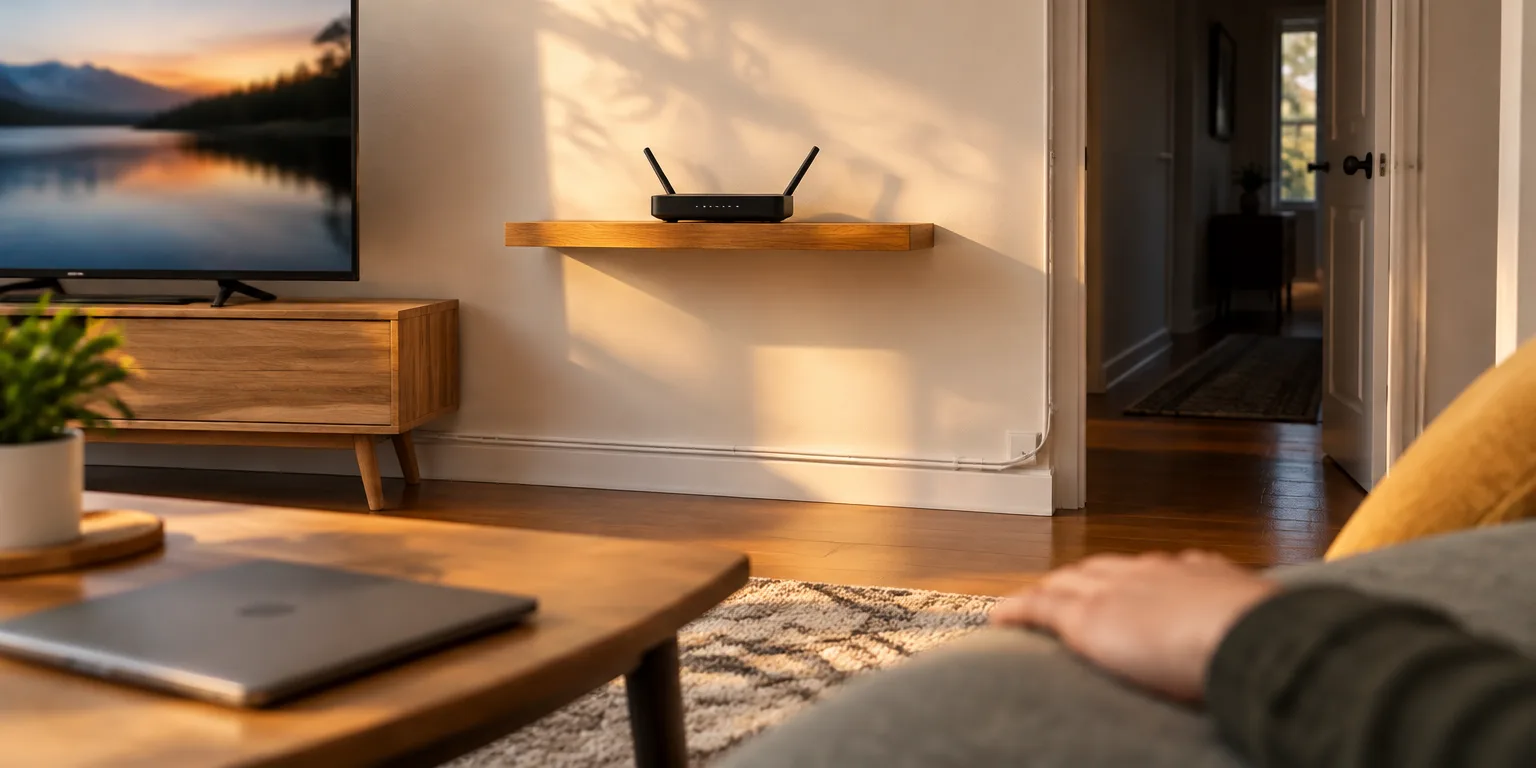
Placement matters as much as settings. Set the main box toward the center of the space where you live, raised on a shelf, in the open, and clear of kitchen appliances that interfere.
Recent Wi-Fi includes a sharing feature that lets many phones, speakers, and sensors send small bursts at the same moment, which helps in a crowded living room. Concrete and stairwells block the signal itself, which sharing cannot get around, and a wider lane struggles further when reception is poor, so widening the setting cannot fix weak reception.
Start by plugging a laptop into the modem and writing down download and upload. Then shift the router to a central shelf, make a second network name just for smart gadgets, switch on the setting where devices on that name cannot see each other, and wire the television if one cable is possible. Removing that one fixed, hungry viewer lightens the load on the air.
Questions people ask
How do I know if my 5 GHz air is crowded?
Open the router app or admin page and look for a channel scan or neighbor list. If you see many nearby names on the same 5 GHz channel, drop from 80 MHz to 40 MHz and try a cleaner channel.
Why give smart bulbs and sensors their own network name?
A separate network for smart gadgets keeps a cheap bulb or plug apart from your main devices. With client isolation turned on, devices on that extra name cannot see each other or your laptops and phones.
Can my old printer or camera use 6 GHz?
No. The 6 GHz band needs newer Wi-Fi 6E or Wi-Fi 7 gear and newer security, so older printers, cameras, and plugs cannot join it. Leave them on an isolated 2.4 GHz network and save 6 GHz for close, compatible phones and laptops.