Save a web quote to Apple Notes and jump back to it later
Highlight first, then share, and the note keeps the quote plus a link that returns to that passage.
 Be Productive · Best Ways to Use Apple Notes in 2025! Apple Notes Review
Most saved links go stale in a note. You keep the address, but you lose the sentence that made you save it, and later you have to hunt through the whole page again.
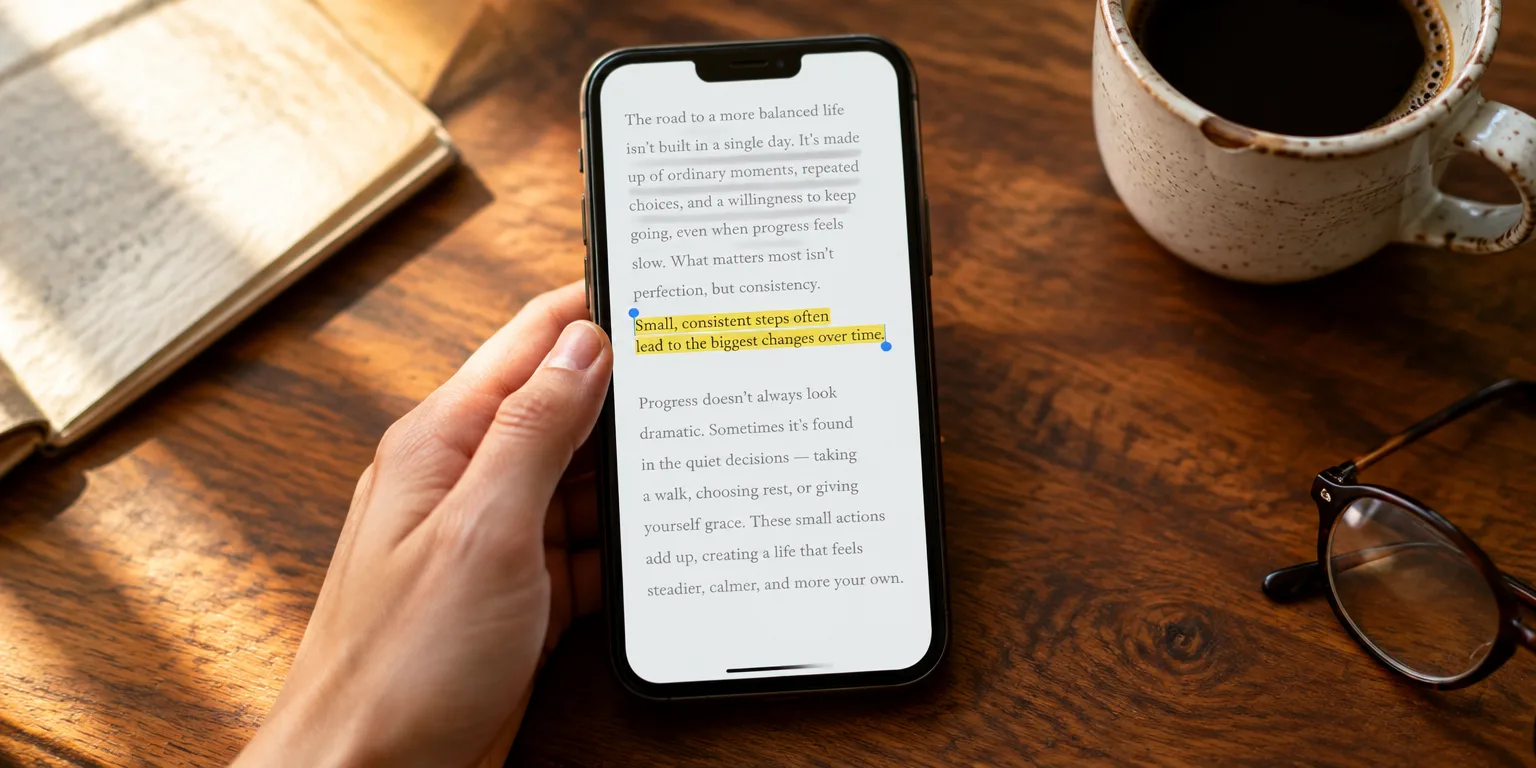
There is a neater way to keep both. On an iPhone or iPad, highlight the passage on the web page, then use share to send that page to Apple Notes.
Inside the note, you do not get a plain blue link. You get the link with your highlighted text attached as a small quote.
On a Mac, you can also drag the address bar into a note. Grab the address bar from whatever page you have open and place it in the note. Notes turns it into a clean, visually rich preview, and it handles almost every site.
The useful part comes when you return. Tap that quote-linked entry inside Notes, and Safari opens the page right at the passage you saved. You land back where you left off.
When you do not need a quote, you can still pull the page in as a preview you can recognize at a glance.
Next time you find a line worth keeping on your iPhone or iPad, highlight it first, then share it to Notes.
Questions people ask
Do I have to copy and paste the quote myself?
No. Highlight the passage first, then share the page to Notes. Notes attaches that highlighted text as a quote alongside the link, so you do not have to copy and paste it yourself.
Which method do I use on a Mac versus an iPhone?
On a Mac, you drag the address bar into a note for a rich preview. On an iPhone or iPad, highlight the passage first and then share it to Notes to keep the quote with the link.