Scan paper into an iPhone note, then draw on it
The built in scanner saves the photo as part of the note, and newer iPhones can write, circle, and sign on top.
 PCMAG · Write This Down: 25 Things You Didn't Realize Apple's Notes App Could Do
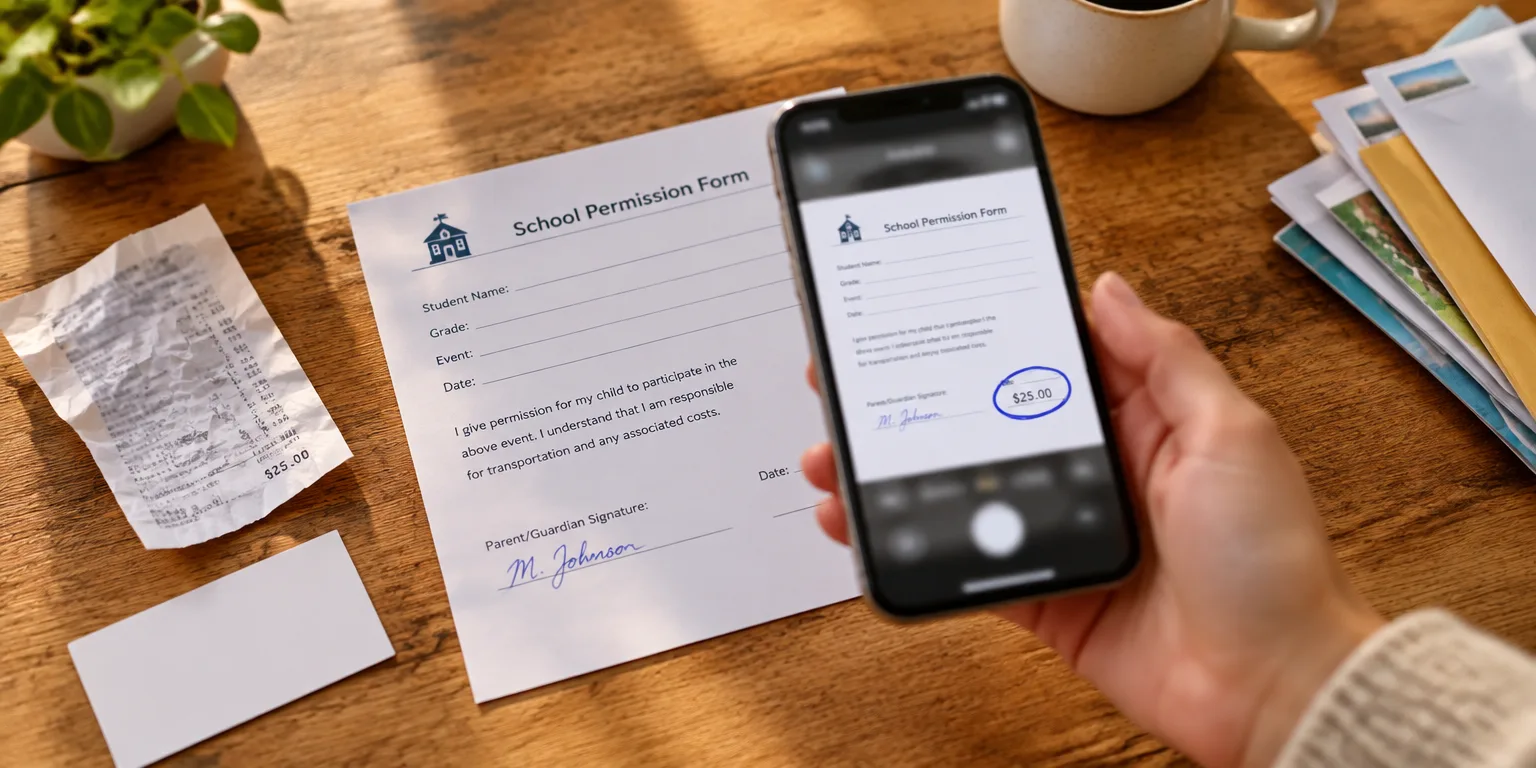
The receipts in your wallet, the school form on the counter, and the business card in your jacket pocket do not need a scanner to become digital. The Notes app already on your iPhone will photograph the page and drop the image directly into a note where you can keep it alongside lists, links, and reminders.
Start fresh or return to a note you already keep. Tap the three-dot menu and choose Scan. Hold the phone over the page and let the scan run. When it finishes, the picture lands inside that note by itself.
That alone lets you keep paper in Notes. You can keep the electric bill, the insurance card, and the handwritten recipe in one place instead of in piles.
Since iOS 17, you can also write on those scans. Open the note and tap the scanned page or photo. Then tap the drawing symbol tucked near the bottom edge of the screen and pick a pen or highlighter.
Press and hold the pen or highlighter to adjust how thick or shaped the line is, and tap the color wheel to pick a color. Then draw, underline, circle a total, or sign your name with a finger.
Try it this week with one page you would hate to lose. Open Notes, make a new note, and run your first scan.
Questions people ask
Do I need a separate scanner app to do this?
No. The feature uses the camera built into Notes, so there is nothing extra to buy or download.
Can I mark up a scan without a stylus?
Yes. You can underline, circle, and sign by dragging a finger on the screen. On an iPad you can also use an Apple Pencil for finer control, but it is not required.
What software version do I need for the drawing part to work?
You need iOS 17 or iPadOS 17 or later for markup on scans. Apple lists which devices can run that software on its iOS 17 compatibility page, so check there before you update.