Tag an Apple Note and It Files Itself
Smart folders gather every note with the same tag, and add new ones as soon as you type it.
 PCMAG · Write This Down: 25 Things You Didn't Realize Apple's Notes App Could Do
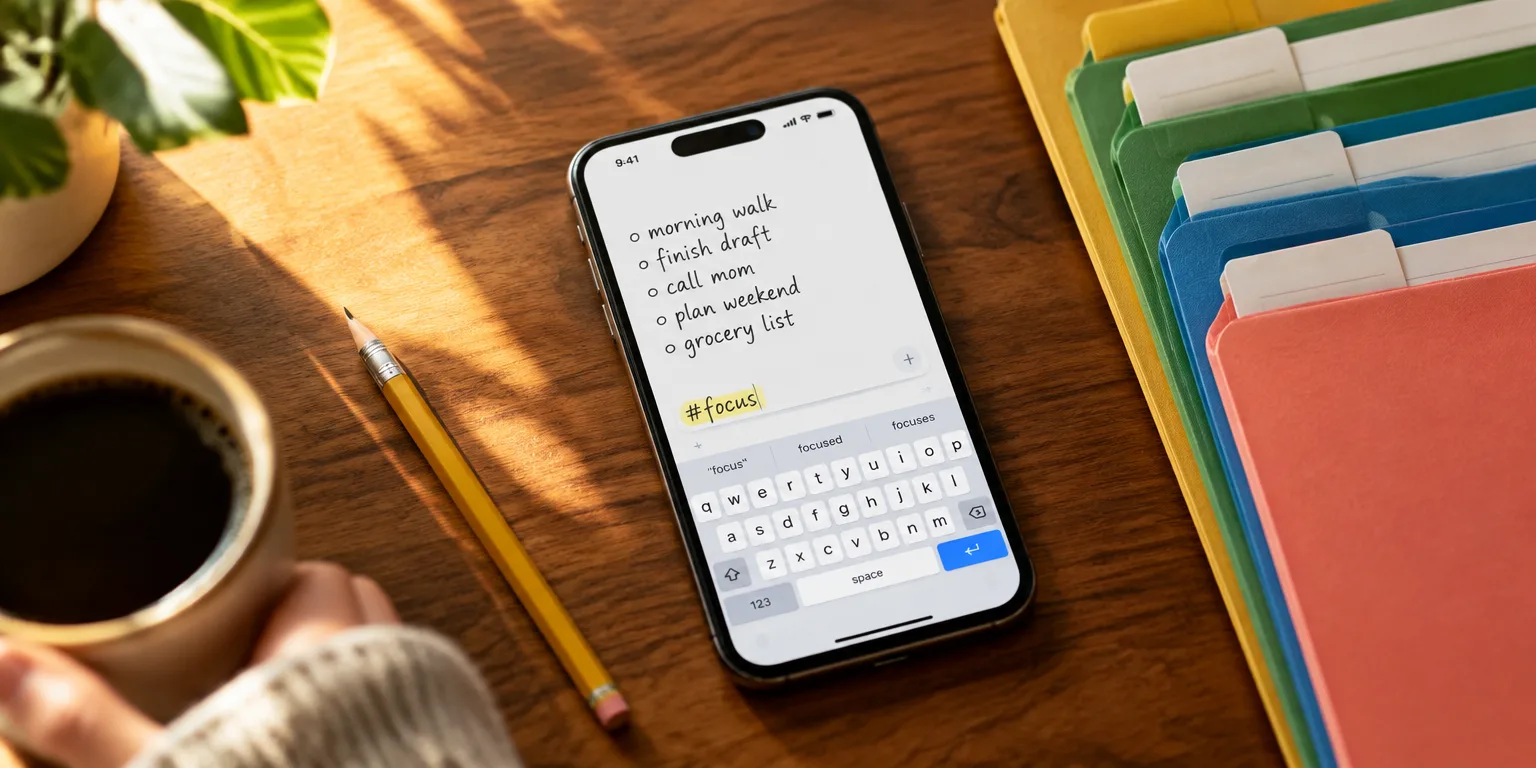
The filing system is simpler than folders. You type a hashtag into an Apple Note, and the note sorts itself.
The tagging option, added with iPhone software version 15 and the matching iPad software, lets you add hashtags in the title or body of a note. Just type the number sign, then add your label, then tap the suggestion shown above the keyboard to confirm it. A tag cannot contain spaces, but it supports hyphens or underscores. Once the tag exists, you can reuse it in another note by typing the number sign and picking it from the suggestions above the keyboard.
You can also tag in bulk. Tap the ellipsis icon, choose Select Notes, tap each note you want to tag, then tap the tag button at the bottom and pick the tag. A Tags section then appears on the starting list of notes, where you can look at every tagged note or filter to one tag at a time.
Smart folders do the rest of the work. On the starting screen, tap the folder symbol at the lower left, name the new folder, turn on the smart-folder setting and pick your rules. Tap Done, and the folder fills with every note carrying that tag.
The useful part is that it stays current. When a fresh note gets that same tag, the note appears in the smart folder without any extra filing.
To start, pick one word you already search for, like receipts, ideas, or trip-plans, and add it with a hashtag to three old notes.
Questions people ask
Do I have to create the same tag again in each new note?
No. Once you make a tag by typing # and confirming it above the keyboard, it stays available. In a later note you only need to type # and tap it in the suggestions.
Can a tagged note still live in a regular folder?
Yes. Tags work inside regular folders too. A smart folder collects matching notes no matter which ordinary folder they live in, based on the filters you pick.